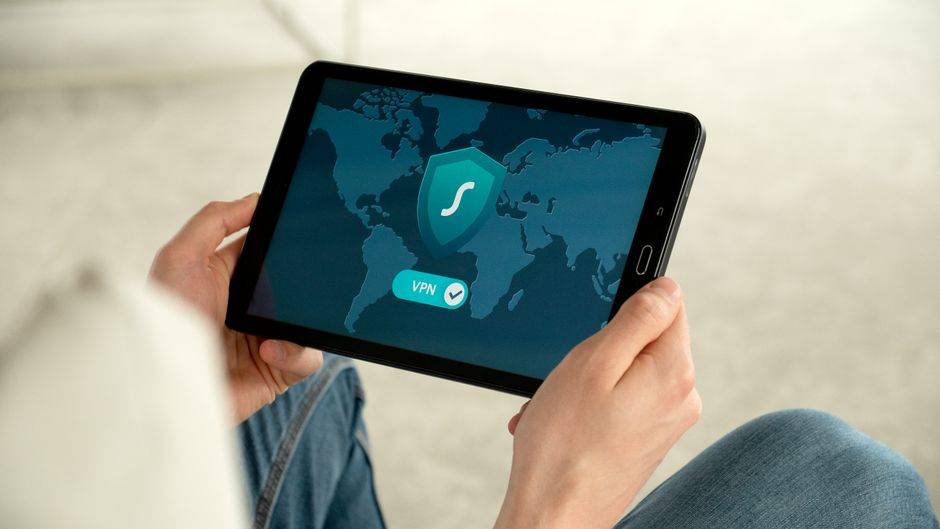
A VPN app protects the device it is installed on. A VPN router protects devices that cannot run an app, including smart TVs, game consoles, streaming sticks, smart speakers, and some work devices. When you configure a VPN router, every device connected to that router can use the encrypted VPN connection automatically. Router setup takes more care than installing a mobile app. The right approach depends on your router model, VPN provider, and whether you need privacy for your whole home or only certain devices. Before you configure a VPN router, check whether your router supports VPN client connections. VPN passthrough only allows individual devices to use a VPN app; you need a router that can actively connect to a VPN server as a client. Some routers support this through their admin dashboard, others need compatible firmware, and some internet-provider routers do not support VPN client configuration. You will also need an active VPN subscription and manual router configuration files or connection details. WireGuard is usually faster on modern hardware, while OpenVPN is widely supported and dependable on older routers. Save a backup of your current router configuration before changing settings. Choose the right setup for your home. A router with built-in VPN client support is the easiest option for most users. Compatible third-party firmware offers advanced controls but installing it carries risk. A preconfigured VPN router costs more but requires less technical work. Alternatively, connect a VPN router to your main router with Ethernet to create a second network: devices on the VPN router use the VPN, while devices on the main router use the regular connection. To configure the router, first connect to its admin dashboard, preferably over Ethernet, and sign in. Change the default admin password on a new router. Update the router firmware using an official update, and wait for the router to restart fully. Find the VPN client settings, not VPN server settings, and select a protocol supported by both your router and VPN provider. WireGuard is usually a good starting point for streaming, gaming, and video calls; otherwise use OpenVPN and the provider's recommended configuration file. Download a configuration file for a server location from your provider, upload it to the router, and enter the dedicated manual-setup credentials. For WireGuard, enter the public key, private key, server address, and allowed IP ranges carefully. Choose a nearby server when speed is the priority. In the VPN client settings, enable the provider's DNS option or recommended private DNS settings. Consider enabling a kill switch or an option to block internet access if the VPN disconnects, bearing in mind that devices may lose internet access during a VPN outage. Save and activate the VPN connection. Once connected, join the Wi-Fi from a phone or laptop and check that the public IP address reflects the VPN server location. Test everyday activities such as browsing, streaming, calls, and gaming to confirm that DNS, routing, and speeds work as expected. Use split tunneling when appropriate. Some banking apps, local services, smart home products, employer-managed devices, and online games may work better outside the VPN. If the router supports policy-based routing, assign the VPN only to selected devices and reserve fixed local IP addresses so the routing rules remain in place after a restart. If the VPN will not connect, confirm that the subscription is active, the manual credentials are correct, and the configuration file matches the selected protocol. Downloading a fresh configuration file may resolve outdated server information. If the internet is slow, try a nearby server or WireGuard if supported; entry-level routers may struggle to encrypt fast connections, particularly with OpenVPN. If websites show the wrong location or refuse to load, clear the browser cache, restart the device, and review the router's DNS settings. If nothing can reach the internet after connecting, temporarily disable the kill switch to check whether the VPN tunnel is passing traffic. If necessary, disconnect the profile, restore the router backup, and re-enter the settings one field at a time. A properly configured VPN router makes privacy the default for your household. Start with the simplest setup your hardware supports, test it on the devices you use most, and adjust routing rules only when they solve a real problem.